 ASGE
ASGECreate a project
A project is the durable unit; a scene is one of its levels. Everything project- and scene-related lives under the File menu.
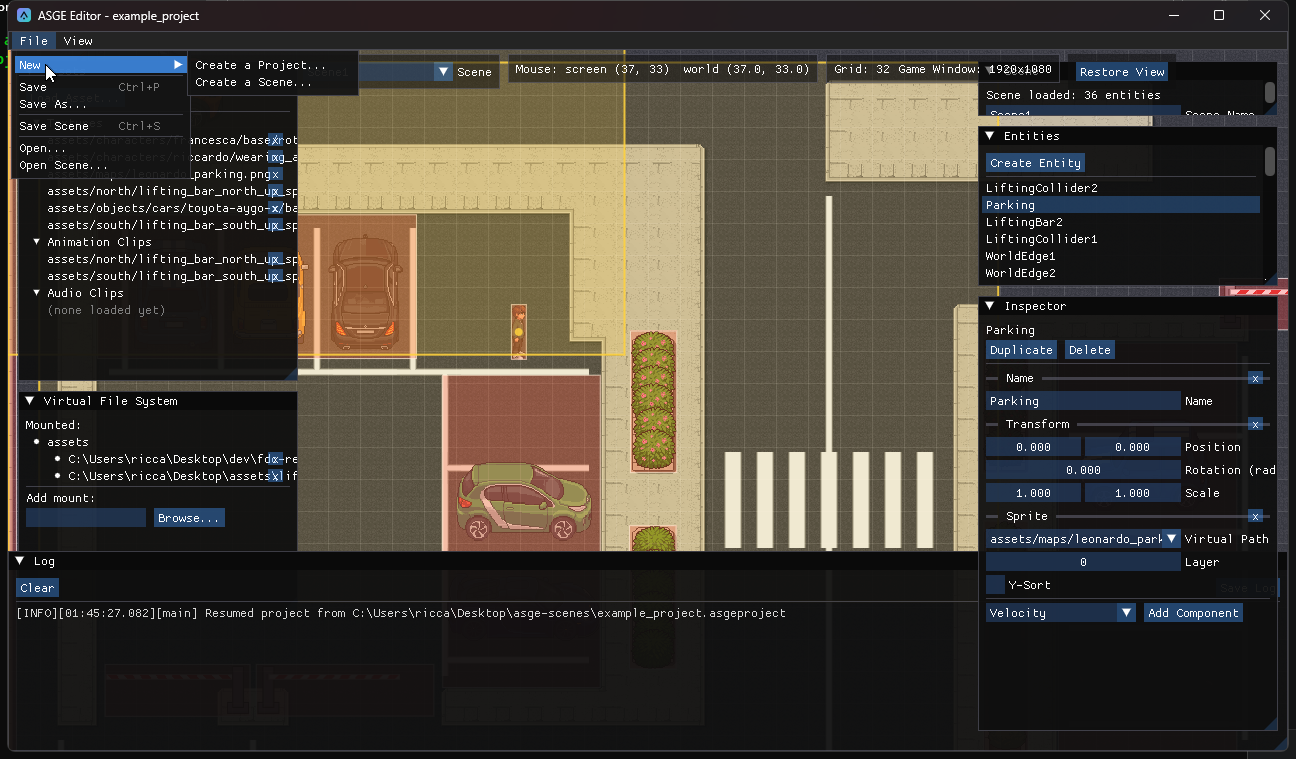
Steps
- Choose File → New → Create a Project....
- Enter a name and a folder, the grid spacing and the game window size.
- Confirm. The editor creates the project and saves an Empty Scene inside it.
Result: an .asgeproject file plus one .asgescene, both open in the editor.
File menu reference
| Item | What it does |
|---|---|
| New → Create a Project... | Name, folder, grid spacing and game window size; auto-creates and saves an "Empty Scene". |
| New → Create a Scene... | Adds a new scene to the current project (disabled without one). |
| Save / Ctrl+P | Saves only the project file (mounts, assets, view, scene list) - never scene data, even a dirty scene. |
| Save As... | Copies the project and every scene file to a new folder. |
| Save Scene / Ctrl+S | Saves the active scene's entities. |
| Open... / Open Scene... | Opens an existing .asgeproject / adds an existing .asgescene to the current project. |
Every scene-affecting item is disabled while no project is open, and scene-specific ones stay disabled until a scene is active: there is nowhere for a new entity or asset import to persist to otherwise.
What is stored where
.asgeproject- VFS mounts, known asset paths, view settings (grid spacing, target game window size) and the list of scene files..asgescene- a plain TOML file with one level's entities, the same formatSceneManager::SaveScene/LoadSceneuse anywhere in the engine.asge.session- remembers which project and scene were active; auto-saved every 30 seconds and restored on the next launch. It lives in your per-user data folder (%APPDATA%\ASGE\Editoron Windows), not next to the executable, so it works when the editor is installed somewhere read-only such asC:\Program Files.
Next: Work with scenes.