 ASGE
ASGEWork with scenes
A project can hold many scenes; the editor keeps exactly one active at a time.
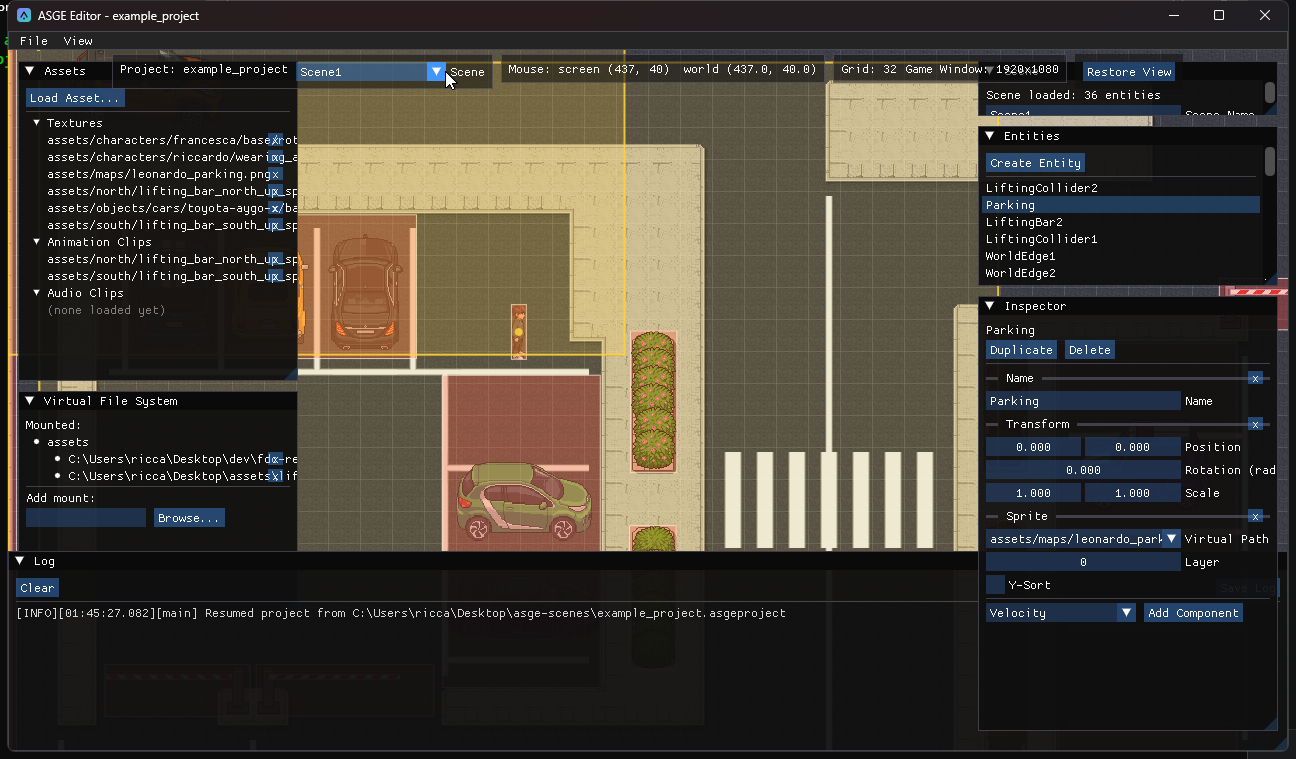
Steps
- Find the HUD panel next to the viewport's mouse-position readout. It shows
Project: <name>and a Scene dropdown listing every scene the project knows about. - Pick another scene. If the current one has unsaved changes (a filled dot next to the dropdown), it is saved first.
- To rename the active scene, use the Scene panel. This moves its
.asgescenefile on disk to match; no copy is left behind under the old name.
Result: selection, dirty state and asset resolution are reset for the incoming scene.
How switching works
SceneManager keeps one scene's entities live at a time. Switching away suspends the outgoing scene into an in-memory snapshot instead of destroying it, and switching back to a visited scene restores that snapshot instead of re-reading from disk. Repeat switching is fast and a stale scene's entities never bleed into rendering, picking or the entity list.
Previous: Create a project · Next: Navigate the viewport.